Saturday, June 9, 2012

SSD to Revive my PC

SSD to Revive my PC

My current primary home Windows PC is running Windows 7 on hardware from late 2009: a Quad Core Intel Core2 CPU, a variety of SATA and IDE hard drives, and 4GB of RAM (800 MHz bus).  It's still very usable after booting, but the time from power-on to having logged in and getting Chrome or Firefox open is 3 minutes and 5 seconds.  Here are a set of timings for the machine (all times are total from the point the BIOS recognizes the CPU):

To login screen visible: 40 sec
To Windows 7 desktop visible: 1min 15sec (75 sec)
To Chrome browser open: 3min 5sec (185 sec)

That's a bunch faster than it ran under Windows XP (I skipped Vista.... didn't everyone?), even with the addition of tons of drivers and startup processes that I surely only used once to play with a new gadget.  Still, after experiencing my recently bought Samsung Series 3 Chromebox (see more on that below), I thought I had to be able to do better and breathe some more life into this machine.

After doing a bit of research on consumer SSD (Solid State Drives), I found the Crucial 128 GB m4 SSD and thought I'd give that a try.  My prior boot partition was only 80GB, so I didn't need a bigger size (I use secondary drives for my data to avoid overfilling the boot partition and to make it easier to re-install/update OS).  I also ordered a StarTech 18in SATA Cable since it wasn't terribly clear whether the SSD would come with a cable.

A little more research later, I decided I should also use some disk cloning software to facilitate the transfer of the boot drive and the OS from the existing SATA drive to my new SSD. There are instructions for how to do this with only free software (e.g., http://www.howtogeek.com/97242/how-to-migrate-windows-7-to-a-solid-state-drive/ ) but Paragon's Migrate OS to SSD tool seemed like a good deal for $20.

And it was... the cloning of the OS to the new drive went flawlessly (as had the installation of the SSD).  I did struggle for (far) too long with getting my complex mix of drives to allow me to consistently boot reliably off of the new SSD and learned more than I wanted to about BootRec.exe and BCDEdit.exe.  On the same night I started, though, I did get it working and was ready for the timing test.  The new numbers with the Crucial 128 GB m4 SSD were:


To login screen visible: 34 sec (down from 40 sec, ok)
To Windows 7 desktop visible: 44 sec (down from 75 sec -- wow!)
To Chrome browser open: 49 sec (down from 185 sec -- wow WOW!)

The PC now feels almost like a brand new high-end machine with a fresh OS install!

Again, though, remember that the original point of comparison was my new Samsung Series 3 Chromebox.  If all you ever want to do is get into a Chrome web browser, it's still the champ.  It goes from power-on to typing a URL into the address bar in only 7 seconds.  It took me longer than that to write this short sentence!

Tuesday, May 24, 2011

Cassowary Constraint Solver in JavaScript

As a longtime-recovering academic, I still occasionally feel the urge to make the work I did for my Ph.D. back in the '90s matter more in the real world.  Recently, I had the chance to use two different and unrelated pieces of my research together.... as any fellow technologist knows, that makes doing the work way more than twice as fun!

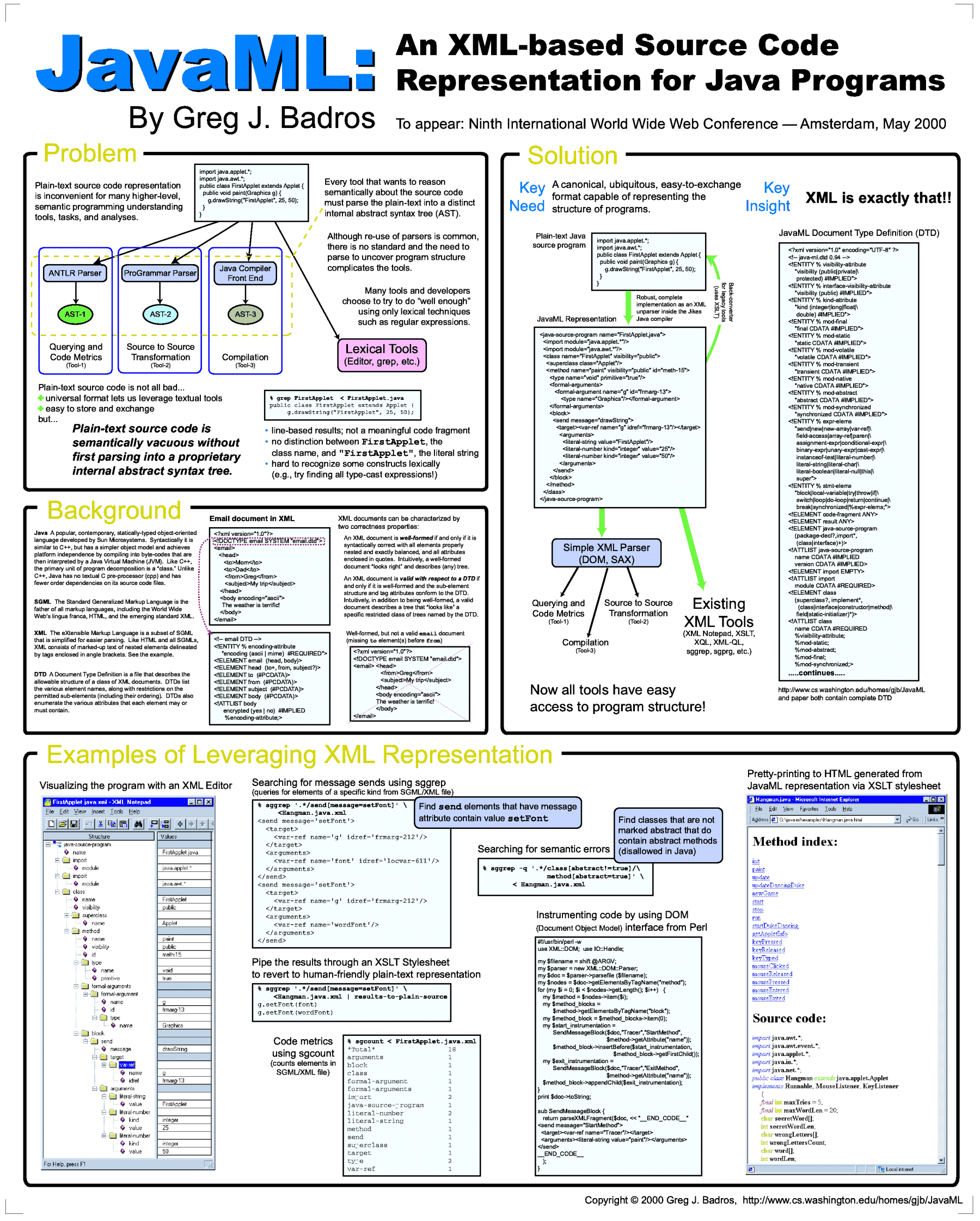
One of the projects I found a new use for is JavaML – work I did in 1999. For my grad school career, JavaML was perhaps most notable because it was done right before I finished my Ph.D. but was not included in my thesis at all... quite literally, I went to my advisor one week before the submission deadline and said "I'm gonna disappear for a week while I work on this cool idea, ok?" Luckily, that paper was accepted to WWW in 2000 which was hosted in Amsterdam. Yes, the choice of conference was somewhat influenced by its being hosted in the Netherlands, but also because the project idea was grounded in something I knew the WWW community would be excited about: the use of web standards applied to developer, language, and compiler tooling. Specifically, my idea was appealingly simple: convert Java source code into XML so that one could use XML tools such as XSLT, SAX parsers, DOM trees, and more, to write code transformations  and analysis and querying tools. The primary challenge was the exact design of the XML schema for the Java AST.  That piece was critical in making downstream tools powerful and easy to build.  As with all of my work, I backed the theory with an implementation that I built using IBM's then state-of-the-art Java compiler. All told, that JavaML paper turned out well, I made a cool poster for UW's industrial affiliates one year and I had a working implementation that had plenty of reasonably compelling examples. And I had a fun visit to Amsterdam... But never did I myself use the tools I built for anything practical. Until a couple weeks ago....

The other prior research I dusted off in my latest personal project is the Cassowary Constraint Solving Toolkit. That work and its applications made up the bulk of my PhD thesis. In a nutshell, Cassowary is a library and framework for expressing linear arithmetic equality and inequality relationships among variables and solving systems of those relationships incrementally and in real time. Most of my work involved applying the incremental solver to graphical applications such as the Scheme Constraints Window Manager or the Cascading Style Sheet engine in web browsers and Scalable Vector Graphics renderers, but other researchers used it for satisfiability engines and resource planning, and more. For many years, I used Cassowary daily in the Scheme Constraints Window Manager, but it never achieved widespread use on the web. In part this is because it needed to be built into the browser... although I made the Cassowary toolkit available in C++, Java, Smalltalk, Python, and Scheme, none of those languages were easy to demonstrate over the web.

A few weeks ago, I realized something both obvious and important. We all know that JavaScript implementations have improved leaps and bounds over the last decade. IE6 was a disaster to work with in large part because the JavaScript implementation was good enough only for the tiny little scripts that defined JavaScript in the 90s. Today, Chrome and its V8 engine along with similar advances in Safari  (Nitro) and Firefox (TraceMonkey) make JavaScript performance scream. That meant that I could run Cassowary natively in the browser with good performance if only I had a JavaScript implementation. (Or, more properly, ECMAScript.)

Thus, my plan was hatched: given that I wrote a Java implementation of Cassowary, I would use JavaML to serialize that code into its XML representation. Back in 2000, I wrote an XSLT-based converter to go back from JavaML's XML representation to plaintext Java source code (in fact, round-tripping between those representations was my unit test as I was building JavaML). For this project, I'd change that converter to, instead of outputting Java source code, transliterate language constructs and generate a close-to-correct JavaScript plaintext representation of the program. Then, after some editing and debugging, I'd end up with a complete JavaScript implementation of the solver enabling me and others to explore the use of constraints for layout or other functionality within rich, modern AJAX web applications. In case you're impatient, here's the bounded quadrilateral demo in JavaScript. The full JavaScript implementation of Cassowary is available via CVS at Sourceforge with the rest of the Cassowary distribution.

Let me go through that last paragraph in slow motion. First, I took my Java implementation of Cassowary which has code like this:

public String toString()
    { 
      StringBuffer bstr = new StringBuffer("[");
      for (int i = 0; i < _values.length-1; i++) {
        bstr.append(_values[i]);
        bstr.append(",");
      }
      // ...
      return bstr.toString();
    }

after running it through my Jikes-JavaML tool, I get JavaML XML code like this:

<method name="toString" visibility="public" id="meth-3340">
  <type name="String"/>
  <formal-arguments/>
  <statements>
    <!-- StringBuffer bstr = new StringBuffer("[") -->
    <local-variable name="bstr" id="locvar-11045"> 
      <type name="StringBuffer"/>
      <new><type name="StringBuffer"/><arguments>
           <literal-string length="1">[</literal-string></arguments></new>
    </local-variable>
    <loop kind="for">
      <init> <!-- int i = 0 -->
        <local-variable name="i" id="locvar-11050">
            <type name="int" primitive="true"/>
            <literal-number kind="integer" value="0"/></local-variable>
      </init>
      <test>
        <binary-expr op="lt">  <!-- i < _values.length - 1 -->
          <var-ref name="i" idref="locvar-11050"/>
          <binary-expr op="-">
            <field-access field="length"><var-ref name="_values"/></field-access>
            <literal-number kind="integer" value="1"/>
          </binary-expr>
        </binary-expr>
      </test>
      <update> <!-- i++ -->
        <unary-expr op="++" post="true">
            <var-ref name="i" idref="locvar-11050"/>
        </unary-expr>
      </update>
      <statements>
        <send message="append"> <!-- bstr.append(_values[i]) -->
          <target><var-ref name="bstr"/></target>
          <arguments><array-ref><base>
                <var-ref name="_values"/></base><offset>
                <var-ref name="i"/></offset></array-ref>
          </arguments>
        </send>
        <send message="append"> <!-- bstr.append(",") -->
          <target><var-ref name="bstr"/></target>
          <arguments><literal-string length="1">,</literal-string></arguments>
        </send>
      </statements>
    </loop>
    <!-- ... ... -->
    <return> <!-- return bstr.toString() -->
      <send message="toString">
        <target><var-ref name="bstr" idref="locvar-11045"/></target>
        <arguments/>
      </send>
    </return>
  </statements>
</method>

Note that I specifically designed features of the JavaML representation to support edges (via id/idref pairs) between uses of variables and their declarations (which include their static types). That means that I can convert the above XML into JavaScript, essentially transliterating from Java to JavaScript, in a type-aware way using XSLT and template precedence rules to specialize rewrites based on details of the AST. For example, these rules make sure that StringBuffer.append and .toString method invocations result in the appropriate JavaScript constructs of "+=" and a no-op, respectively:

<xsl:template
    match="send[@message='append'][id(./target/var-ref/@idref)/type/@name='StringBuffer']">
  <xsl:apply-templates select="target"/>
  <xsl:text> += </xsl:text>
  <xsl:apply-templates select="arguments/*"/>
</xsl:template>


(The above template matches send elements with message attributes of 'append' that also have the target/var-ref/@idref pointing to a declaration that has a type element with name attribute of 'StringBuffer'.  I.e., apply this rule to all sends of the "append" message to variables with static type "StringBuffer".)


<xsl:template 
    match="send[@message='toString'][id(./target/var-ref/@idref)/type/@name='StringBuffer'][not(arguments/*)]">
  <xsl:apply-templates select="target"/>
</xsl:template>

Those rules applied to the JavaML representation of the Java source code then result in this JavaScript:

  toString: function() {
    var bstr = "[";
    for (var i = 0; i < this._values.length-1; i++) {
      bstr += this._values[i];
      bstr += ",";
    }
    // ...
    return bstr;
  },

In this case, the converted code is perfect and ready to execute.  The actual process was a bit more laborious, involving iterating on specializing the XSLT transformation for each subsequently more complex Java source program in the full library and hand-editing the output to fix the places where it was not worth my while to make the XSLT smarter (and finding a few bugs in Jikes-JavaML and my XSLT transformations along the way).  I also had to make several choices of libraries and JavaScript langauge extensions as dependencies to the converted JavaScript.  For a simple object-oriented framework, I used the server-side MooTools, and for a true hashtable and hashset (i.e., one that can have arbitrary objects as keys, not just strings), I used jshashtable and jshashset (with some minor modifications to support an escapingEach mechanism to allow break and non-local returns since the algorithm uses those patterns throughout).

After about three weekend days of working on this, I ironed out the last of the (known) bugs (which turned out to be an error in my Java implementation that I'd fixed in the C++ implementation years ago).  Then I implemented the previously-mentioned bounded quadrilateral demo in JavaScript, learned about Touch events on iOS devices and made the demo work on my iPad and iPad2.

I hope developers out there are able to find creative uses of the constraint solver on their web pages and applications.  And maybe someone will improve the JavaScript implementation with something that truly looks and feels like JavaScript (rather than Java hiding behind a JavaScript surface syntax)!  Until then, I may port to JavaScript the string expression parser to make it easier to specify constraints just by writing something like "x + width < screen_width".  The dynamic expressiveness of JavaScript should be a huge help in experimenting with tighter integration with the rest of the environment, similar to my Scheme implementation and the way it interacted with the Scwm Window Manager.

Saturday, May 1, 2010

Skype as a whole-house Wireless Microphone for Home Automation

After buying a home (finally!) this past fall, I've been setting up a bunch of home automation capabilities. Recently I got far enough along that I started pondering how I might get a whole-house microphone system talking to my central (Windows XP-based) computer running HomeSeer (v2.0.4.36). I first considered xTag USB-Only System w/ One xTag Wearable Microphone, but the range of just tens of feet seemed way too limiting.

Then I had a thought... a wonderful, crazy thought... what if I could find a WiFi microphone -- one that used my existing 802.11n wireless network. After doing some quick searches, I realized that I already had such a thing: my Apple iPod touch (2nd generation since it needs a microphone on the hardware) and Skype! All I needed to do was use my iPod touch (or iPhone, or anything that has a decent Skype client) to call a Skype account running on my home automation server. I could then configure the sound output from that call to be the voice recognition input into HomeSeer's "Speaker" application that then controls HomeSeer. (Notably, the Speaker application actually need not be running on the same machine as HomeSeer, but I'm trying to be green by having only a single low-wattage computer always-on in my house, so I run it on the same machine.)

Now, if you've not been reading all my oh-so-infrequent posts, you may be thinking "hmmm, that sounds great, but how do you make the audio output from one program [Skype] become the microphone input of another program [Speaker]?"

Avid readers realize that in an earlier post I
did exactly that to Stream iTunes music to my SqueezeBox duet receiver. Using Virtual Audio Cable 4, I created two virtual audio cables -- I set up "Virtual Cable 1" as the default output channel for Speaker as shown in the first figure.


Then I set up "Virtual Cable 2" as the default microphone input -- you do that from the Control Panel -> Sound page. (It varies by Windows operating system variant.) After making those changes, you need to restart the Speaker client and at that point the Virtual Audio Cable's control panel will look like the below -- notice that there is 1 recording stream on Virtual Cable 2 -- that's the Speaker application that opened that cable as its microphone. If it's not showing 1 there, you need to try again to make that cable the default input and restart the Speaker application.


After that, I set up Skype on the home automation PC, created a distinct user account, set it up to only accept calls from my specific other Skype account, and made it auto-answer calls. I set the audio settings of Skype to have the microphone input be Virtual Cable 1 (the one that the Speaker application is doing text-to-speech on, since that input will be sent over to the speaker of my iPod touch so I can hear what the computer says to me) and to have the Skype speaker output setting be Virtual Cable 2 (the one that the Speaker application is using for voice recognition, since it's gonna play out what it hears from what I say into my microphone on my iPod Touch). The audio settings end up looking like this:


To test it, I made a call from my iPod Touch to that new Skype account. The Virtual Audio Cable control panel comes in handy here again, as it should, after the call is connected, look like:


Notice that now there is a recording stream on Virtual Cable 1 (Skype reading its microphone input, the output of the Speaker application) and a playback stream on Virtual Cable 2 (Skype writing its speaker out to the input of the Speaker application).

From that point, I'm able to give voice commands to HomeSeer via my iPod Touch. I had to retrain the voice recognizer (Windows Control Panel->Speech) for this new setup, even just to get Speaker to recognize the attention phrase. It'd be nice to not require the attention phrase and to simply take a command immediately upon Skype answering a call, but I'm not an expert with Speaker so I'm not sure it's possible.

I was also able to get this working using my new HTC Droid Incredible Android Phone, and again had to retrain voice recognition and microphone levels with that set up. Unfortunately (and surprisingly) Verizon seems to only let its Skype Mobile run over 3G and not over WiFi... this seems really insane especially for the substantially more open Android platform -- remember, Skype exists in a more full-featured form for the Apple-controlled iPhone. Regardless, I got VoIP over WiFi working using Fring and its Skype plug-in.

All in all, I'm pretty psyched to now have my whole-house microphone setup! Now if only HSTouch on the iPod Touch worked with the SqueezeBox plug-in without crashing... then I might be able to control my audio using my voice (I still use the awesome iPeng application to do that, and waiting for an Apple iPad Tablet version of that app).

Saturday, May 23, 2009

iPhone as a Universal Remote Using SqueezeBox Duet Controller IR

After the grand machinations I described in my last post to enable me to use Apple's Remote iPhone application to control music around my house through the SqueezeBox Duet Receiver, a commenter pointed out the then-new iPeng application. That app lets my iPod Touch directly control SqueezeCenter on my PC to manage my various SqueezeBox Receivers, and is exactly what I was pining for. In the ensuing months, I transitioned exclusively to using the iPeng application, which left me with the question: what do I do with my now oh-so-dusty SqueezeBox Duet Controllers.

The answer was easy once I took a closer look at the hardware of those controllers... something I'd not noticed before jumped out at me: an Infrared (IR) transmitter! The IR transmitter in its shipped configuration doesn't do anything -- an intron component -- but thanks to Google and various threads like this one on the slimdevices community forums, I discovered that there is rudimentary driver support for the IR device and some trivial samples of using that device. Given that I already knew the controller runs a BusyBox-based embedded Linux, I knew how I'd challenge myself that evening --- no turning my Sony IR-controlled TV on until I could do so from my PC!

I spent the next while reading a bit about Infrared signalling protocols and conventions, and then I built a trivial little script that just called the Duet Controller's /bin/testir via ssh with a command line full of hex codes that I carefully crafted based on my new-found partial competence. I announced to the room "Here we go!" as I dramatically pressed [Enter]......

Nothing.

I rinsed and repeated many times, alternating between worry that the degrees of freedom in command specifications were too great and celebrating short-lived epiphanies that narrowed that search space dramatically. Finally, I decided to pay more attention to the "repeat" parameter that the Linux Infrared Config files mention in passing -- that some devices only recognize an IR command when sent two or more times juxtaposed. I saw that my Sony LIRC file used that option, so I doubled the hex codes corresponding to the command part in the line I was trying, and gave a surprisingly hopeful and still dramatic "And then there was..." as I once again lowered my hand onto [Enter]....

POWER!

The hum of my (awesome, but now 6 years dated) Sony HD CRT Monitor warming up was music to my ears! How cool! With that magical ~200 character command line, I then knew that I could use the SqueezeBox Duet Controller as the IP-controlled IR transmitter portion of an iPod-Touch (or iPhone) Infrared Universal Remote solution!

The rest of the path was simple compared to the reverse-engineering and experimental IR learnings. I educated myself on Lua and Jive (now known as SqueezeOS), the embedded programming language and the Framework, respectively, used by the SqueezeBox controllers. Then I set out to code a small Lua applet to run on the controller. I called it IRServer and the design was simple: an HTTP-like server that just accepts simple commands on a TCP port, strips them of their HTTP artifacts (if any) and issues the appropriate os.exec call to run the C program that drives the IR device driver. By making the server understand HTTP just enough, I knew I could even just write a static HTML page that issued commands when links or buttons were clicked (e.g., just requesting an Image object at a URL corresponding to the command I wanted to issue to IrServer).

I spent a good part of the following weekend pulling the above little design together, along with a simple Perl script that takes a set of Linux IR Config files and turns them into HTML with a link per defined IR button (don't worry, links on that page won't control my devices when you click -- the page assumes you're on the LAN with the controller). I even played around with IUI, the iPhone User Interface framework, and started making a much more iPhone-friendly UI for a bunch of the devices in my living room.

Of course, the good news is I put this project -- IrServerSB (SB for SqueezeBox) -- up on code.google.com. The README file at http://code.google.com/p/irserversb/wiki/IrServerSBReadme has more information about how to try it, and I've set up a Google Groups mailing mailing list (or use the code project page, or comments here) for feedback.

The better news will be if others from the community can take this the rest of the way towards being a complete solution. In particular, RC5/RC6 remotes are reportedly not supported by the Jive IR platform and I can confirm that numerous attempts to turn on my RC6-controlled XBox 360 left me without a satisfying Eureka moment. I'd love to have that supported, and perhaps even build the server as a background-running C server.

Enjoy!

Monday, October 13, 2008

Streaming iTunes Music to my Squeezebox Duet Receivers

Apple's "Remote" iPhone (or iPod Touch 16GB in my case) application for controlling iTunes is so great that I wanted to see if I could use it to control my music in other rooms around my house. Buying an Apple Airport Express extender with its audio output would've been one means to that end. That hardware device costs $99 which isn't terribly expensive, but I already have Squeezebox Duet receivers in both my living room and master bedroom. Adding Yet Another Digital Music Receiver to both rooms seems like overkill (and would exhaust the inputs on one of my stereo receivers), so I decided to figure out how to control the music playing on those existing devices from an iPod Touch. (Yes, it really is a nicer UI than the SqueezeBox Duet controllers that are meant to be so great for this... sorry Logitech.)

Several possibilities occurred to me:

1) Reverse engineer the airport express protocol and improve the duet receiver firmware to make it look like an airport express to iTunes directly. This would be a great solution and Johansen (of DeCSS fame) appears to have done some of the reverse engineering and built some tools to stream data to an airport express. However, that's the wrong direction for my needs: I want something that emulates an airport express in software/firmware. (See also AirFoil that sends Mac audio output to an airport express; also the wrong direction.) This might be possible, but is more than a day's hacking.

2) Find a plug-in for iTunes that streams in a format accessible to my SqueezeBox Duet receivers. If iTunes would broadcast a URL of a streaming mp3, e.g., all would be great. Alas, no such luck.

3) Capture the iTunes audio output somehow (software or hardware) and use another piece of software to do #2.

4) Forego iTunes altogether and figure out a way to approximate Apple's Remote software for Squeezebox Duet's software, the SqueezeCenter (configured using the iTunes plugin so it uses the same library). The downside of this is that any DRM protected songs won't play, but my collection is predominantly ripped off of CDs rather than bought from iTunes (and I've been paying extra for DRM-free music whenever convenient). This approach is tempting, and Google-searching led me to iPeng which is a SqueezeCenter plug-in that skins the HTML it generates to be iPhone/Safari friendly. It's pretty nice, but way slower than Apple Remote because it's going over WiFi chattily and the SqueezeCenter server and the iPeng app apparently weren't written with latency in mind.

#4 might be a cool weekend (and more) project, though my underpowered Mac Mini makes me dread the thought of compile/download/test cycles on it. It's certainly more than a day's hack, too, but would be broadly useful in general (presuming Apple deems the App suitable for their store). The iPeng source might provide a useful starting place.

In any case, I ended up getting #3 working, and that's what I describe below. Note that I did all this work on a Windows XP PC, not the Mac mini I mention above and have blogged about previously.

The basic mechanism ends up being pretty simple and involves only a few components:

1) iTunes plays music, controlled remotely (over WiFi in my house) by Apple Remote running on my iPod touch;
2) Virtual Audio Cable (VAC) 4.0.9 from http://www.ntonyx.com/vac.htm ($30 from https://www.regsoft.net/regsoft/vieworderpage.php3?productid=76825, free trial) to capture iTunes output and loop it back to a virtual input device that is available to other Windows programs on the same machine (note that the free trial has a voiceover of "trial" every five seconds or so);
3) edCast DSP v3 plug-in for WinAmp v5.52 to connect to the icecast32 broadcast server;
4) the icecast win32 port to stream the data it gets from the edCast WinAmp plug-in.

At one point, I thought I needed the LineIn plugin v1.80 for WinAmp and I'm actually using it, but the edCast DSP plug-in allows you to transmit to icecast via a microphone on a selected device. That lets me just configure it to record from the Virtual Cable's SPDIF output directly.

The way I currently have it configured, though, is Winamp is playing from the virtual device "line://" (not its built-in linein:// -- that didn't work for me). My default audio output device is set to a Virtual Audio Cable before I start iTunes (it uses the default output device at startup for playback).

icecast32 is running as a server, I copied the lame mp3 encoder DLL and its ini file into the "Program Files\WinAmp" directory, restarted edCast, and configured an encoder to encode in MP3 and connect to icecast32 running on port 8070, creating a stream called "/stream.mp3". I then set my squeezecenter to playback the "streaming radio station" http://192.168.0.xx:8070/stream.mp3.

In the end, this results in about 4 seconds of lag between pausing on Apple Remote and the music actually pausing (or restarting, or whatever). A little over 3 seconds of that appears to be in the icecast server (for contrast, shoutcast server had over 30 seconds of lag -- unacceptable). I also tried the jetCast dsp PlugIn for WinAmp -- it's a simpler set up since it doesn't require a separate running broadcast server, but it was pretty flakey for me and I gave up on it after finding it just too inconsistent.

I do think I can avoid Virtual Audio Cable, too, by just using a coupler cable to connect my sound-card's audio output to one of its line-inputs, but that would involve an extra gratuitous D->A and A->D conversion pair (but save $30). Another downside of this approach is that it ties up my soundcard more, making it hard to listen to music at my PC while different music is playing around the house.

Sunday, June 3, 2007

Finally Loving my Mac...

I spent much of yesterday working on my Mac, largely with the plan of addressing all the issues that bother me. Instead of actually trying to make progress on my primary task, I willingly accepted every diversion when I encountered an annoyance. That approach proved fruitful as I am now lots more comfortable working in front of OS X!

Here are some of the must-have things that, to my delight, I got working well:

Emacs

I tried Carbon Emacs and Aquamacs, and prefer Carbon Emacs. It's GNU Emacs 22.0.97.1, and I generally have used XEmacs since the late '90s. In about 2000, I simplified my .emacs considerably in order to make it work well on Windows-based XEmacs distributions. Luckily, with those changes, it was just a twenty minute exercise to clean up the most urgent quirks.

Firefox 2.0

I use Firefox on GNU/Linux and on Windows, and had it installed on my Mac from day one, but was always frustrated by the keybinds of Home/End and Ctrl+Left/Right. For me, Home/End must go to the start/end of a line, Ctrl+Home/End must go to the start/end of document, and Ctrl+Left/Right must go backward/forward words. This is non-negotiable. This article describes some steps to address this problem by replacing the jar containing platformHTMLBindings.xml, but I found it easier to just edit that file directly using Emacs to open the jar file /Applications/Firefox.app/Contents/MacOS/chrome/toolkit.jar. The required edits are pretty straightforward, and the new file is now a standard part of my CVS repository of my dot files. Note that I use DoubleCommand to fix those bindings for Carbon apps.

For Firefox, it's also critical that I have all the right extensions and GreaseMonkey scripts installed. Things like FEBE 5.0beta look like they might let me backup and restore my extension set, but I ended up just using InfoLister to create a nice HTML listing of my Firefox extensions on my various other boxes, and then focused on the right minimal set and installed them all. Here's part of the listing from my Windows and GNU/Linux boxes (which are now mostly the same as my Mac):
My greasemonkey scripts are also important to my general happiness. My two favourites are Advanced Google Keys (lets me use keys to navigate Google search results, similar to our experimental feature) and my own trivial Widen Google Results (optimize Google result snippets for bigger monitors). Those are a part of my CVS dots repository, too, so they were easy to add.


Terminal

I'm fairly particular about the terminal program I use: key-bindings, supporting-escape sequences, control over what happens as I scroll back through the buffer, search functionally, and more, are all key to my productivity. My a priori goal was to make Mac's native Terminal application work for me. Right away, though, I noticed that it didn't have antialiased fonts. I don't know whether I turned them off in a misguided attempt to favour performance over eye candy, but I immediately went back into Window Settings -> Display and turned the setting back on. I also prefer a non-blinking blue block cursor, and lots of scrollback buffer (but don't jump to the bottom just because I start typing).

The default keyboard bindings in Terminal are very much biased towards rudimentary use. I generally want to be able to run even an 'emacs -nw' in a Terminal and have a reasonable set of modifiers available that send keystrokes to the application rather than being interpreted by the Terminal. In particular, Home/End, Ctrl+Left/Right, and PageUp/PageDown were set to manipulate the scrollback buffer, rather than send escape sequences for those keystrokes. Although I did the bindings on my own based on my .Xresources-cpp file that I've evolved over the years for xterm, this article has a reasonable couple of suggestions. I also recommend Edward Moy's definitive reference to xterm escape sequences.

The last of my Terminal tweaks was to change my shell to Zsh; I chose to do this just for interactive shells started by Terminal rather than changing my login shell -- that conservatism is mostly a holdover from bad experiences with very minor but subtle incompatibilities between bash and earlier versions of Zshell.


Shell

My Mac has $ZSH_VERSION = 4.2.3, and my only real issue in getting it going was that the Makefile I use to generate my .zshrc relied on one of my scripts that depends on nawk or GNU AWK. (I know what you're thinking: You use a Makefile to generate your .zshrc?!?! It actually makes a lot of sense to strip that down and do dead code elimination since shells parse it every time they startup... maybe a contemporary shell has a better solution like dumping itself after your base config is loaded, but I did this almost 15 years ago and it's worked great for me.)

Unfortunately, 10.4 seems to ship only with a pretty bare-bones AWK, and the base install of Fink (and even the FinkCommander view of the available packages) didn't show gawk. Moreover, I didn't want my basic Terminal+Zsh configuration to depend on binaries in /sw/bin. Thus, I simply re-wrote the one script in Perl. For the curious, the script in question is now called dedup-path and simply removes multiple occurrences of a path component in a path (after normalizing the components) and optionally removes path components that match a regular expression. There were a couple other little things I needed to tweak for some shell tools (e.g., export LESS='-i -X' to make less's search case-insensitive and have it not clear the screen when exiting), but generally my configuration was pretty comfortable right away.

BTW, after the fact, I did install Fink's gawk using sudo /sw/bin/apt-get install gawk.


Global Keybindings and Window Management

One of the hardest things for me to get right on the Mac relates to the various keybindings I use to get around on the desktop, manage windows, and so forth. I try very hard to avoid using the mouse for most things as it kills my train of thought (and hence my productivity) to have to move my fingers off the keyboard. As I mentioned in an earlier post, Window Dragon was a real lifesaver in letting me move and resize windows without having to aim at far-too-little and often-obscured controls on window decorations. I found several other preference-panel tools that also really help.

First, though, let me note that the "Universal Access" System Preference has lots of good stuff in it. After turning on "Enable access for assistive devices", I have Cmd+Option+= and Cmd+Option+_ do zoom in/out which helps lots when looking at smallish web page layout details or otherwise just working around ill-conceived UIs. I also turn Mouse Keys on so that I can control my pointer with the keyboard -- often that's faster than reaching up for my mouse.

I also edited various other global keybindings using the "Keyboard & Mouse" System Preference. Most important is turning on "Full keyboard access" at the bottom of the screen. But I also tweaked lots of the keys to avoid overlap with Emacs keystrokes that my fingers have had memorized for over a decade. The Microsoft IntelliType Pro keyboard I use came with a nifty configuration tool that also provides some nice capabilities, and see also my earlier mention of DoubleCommand.

I also found a couple of window/application switchers that I like better than the default Alt-Tab handling. I think I'm going to stick with Witch, but LightSwitch and WindowShade X both have some neat features that I may want to keep around. Coupled with QuickSilver for launching new applications (and a whole lot more, it seems, once I read through its capabilities [or maybe watch this QuickSilver video]), I'm pretty comfortable getting around my Mac.


Remaining Issues

My two biggest remaining issues:

1) I need more modifier keys -- Shift, Ctrl, Cmd, and Option are great, but on GNU/Linux I set up both Super and Hyper, too. This is important because there are often various layers of user interactions that might benefit from the same basic bindings, and modifier keys are the only recourse for disambiguating these. E.g., as I'm editing this Blog post inside Firefox, I might want Left to go cursor-left, Ctrl+Left to go left on word, Alt+Left to make Firefox go back to the prior page in the history, Cmd+Left to go to the Browser tab to the left of this one, Hyper+Left to change focus to the window to the left of the Firefox window, and Cmd+Option+Left to go to the left virtual console. I do use multiple-option keys for lots of keystrokes, but support for a bitmap of option keys is inconsistent at best, and avoiding conflict with all the various modifiers that different applications depend on is tricky (especially Emacs inside of a Terminal -- that goes through numerous different keyboard filtering/handling mechanisms before the application finally takes action on the escape sequences sent by the Terminal).

2) I really really want my menus inside the windows so that I can have focus-follows-mouse. I tried setting focus-follows-mouse for Terminal windows, but that's not enough. Moreover, I didn't like the focus getting held by Terminal windows when I used Alt+Tab (or LiteSwitch or Witch) to switch to another window (maybe one of them can warp the pointer... I've not looked for that yet). Real focus-follows-mouse mode seems incompatible with the circumspect design decision of the application menu being tied to the top of the screen. Fitts' law is irrelevant for me because I use keybindings to manipulate the menus. Ugh... but I've mentioned that before.

That's all for now... the outcome of these many hours of tweaking my Mac Mini is that I'm really, truly, finally loving the OS X experience!

Friday, January 26, 2007

Happy days and book reviews

I'm thrilled to now report that I have addressed my biggest user-interface complaint about OS X: I found a package that eliminates the brain-dead resize-only-works-on-the-bottom-right-of-windows constraint! Props go to my colleague, Markus, who did some clever Google-brand searching upon hearing me bemoan my Mac's limitations. Without further ado, the answer: The WindowDragon module for the Application Enhancer (APE). Now I've got Ctrl-Shift-Cmd-Button2 assigned to drag the window (no matter where on click on it) and Ctrl-Shift-Cmd-Button3 assigned to resize the window. It's just like my Scheme Constraints Window Manager (Scwm) which I miss so dearly! I think it'll still be a while before I'm able to make windows dance around algorithmically by writing Scheme code... oh well!

Another quick note: I selected a couple of books to read to soak wisdom for long-time-Mac hackers, and can now report on that experience. I bought Mac OS X: The Missing Manual, Tiger Edition and find it generally useful to skim, but occasionally annoying to read. In particular, the author, David Pogue, continues to insult his readers even chapters in by always reminding them that instead of Ctrl-clicking, they can use the right mouse button. I suppose his insistence on making such remarks is only partially his fault as the Apple designers should just admit that multiple mouse buttons are substantially more expressive than one and ship the Mac with two buttons and a scroll-wheel!

The other book that I've skimmed through is Brian Jepson and Ernest E. Rothman's Mac OS X Tiger for Unix Geeks. It's got a broad but cursory treatment of lots of details about how you can find the Unix behind OS X, and how to make the best use of the various tools we know and love from that background even inside the pretty Mac exterior. The book walks a delicate line between just pointing out obvious command-line utilities such as top and providing subtle details about how OS X hides some Unix structure that would otherwise be tricky to learn. I'll recommend the book to folks who do have a Unix background, especially those who aren't really Unix Geeks.